Nothing CMF Phone 1 Unbrick Firmware & FRP Reset File
 By Mr Jon Cartter
The CMF Phone 1 FRP Reset File is the full stock firmware for the Nothing CMF Phone 1 (model A015), meant for removing the FRP lock and bringing a bricked phone back to life, it runs Nothing OS 4.0 (Android 16), comes in at 5.36 GB, and gets flashed through Nothing Flash Tool in Preloader mode. There isn’t some smaller, separate FRP-only file for this model, FRP gets cleared through the full firmware flash itself. Below you’ll find the complete file details, the flashing method, the no-PC approach, and some important notes worth keeping in mind. For one-tap FRP methods, also check out the FRP Bypass hub. Related file post: SM-T295 U4 FRP Lock Remove File, a method for removing FRP through a Samsung tablet’s firmware file.
File Information
File Type| Brand | Nothing (CMF by Nothing) |
|---|---|
| Model | CMF Phone 1 (A015) |
| Android | 16 (Nothing OS 4.0) |
| Mode | Preloader / BROM Mode (Nothing Flash Tool) |
| CPU Type | MediaTek Dimensity 7300 (MT6878 |
| Operation | Unbrick + FRP Reset (Full Firmware Flash) |
| Elapsed Time | 10–15 minutes |
| Tool Version | Nothing Flash Tool |
| Via | Nothing Flash Tool |
Last tested: 19 November 2026
Quick Answer
The CMF Phone 1 FRP Reset File (A015) is a full 5.36 GB stock firmware package that brings Nothing OS 4.0 (Android 16) onto the phone, unbricking it along the way, and clears the FRP lock during the full flash process. The file gets flashed through Nothing Flash Tool in Preloader mode, and it only works on the CMF Phone 1 (A015).
What Is the CMF Phone 1 FRP Reset File?
This is the official stock firmware for the Nothing CMF Phone 1 (A015, codename Tetris), running Nothing OS 4.0 (Android 16). The file comes in at 5.36 GB, and there’s a reason it’s that big, it carries the entire system, not just some FRP piece. Flashing it rewrites the phone’s software completely: a corrupt system gets fixed, bootloops get cleared out, and since userdata gets formatted during the full flash, the FRP lock gets cleared right along with it. This file is built for this specific model with the MediaTek Dimensity 7300 (MT6878), and it only works on the A015, don’t try flashing this on any other Nothing phone.
What This File Fixes
Softbrick vs Hardbrick
Softbrick means the phone turns on but gets stuck on the logo, keeps restarting over and over, or won’t go past recovery/fastboot, this usually happens after a failed update or a botched flash. Hardbrick is when the phone looks completely dead: black screen, no vibration, nothing shows up even while charging. This file covers both situations, in softbrick, the phone usually connects in fastboot or Preloader mode, and in hardbrick, Nothing Flash Tool grabs the phone through Preloader mode and rewrites the firmware from scratch.
FRP Lock After a Reset
FRP (Factory Reset Protection) is Google’s lock, after a factory reset, the phone asks for verification using the old Google account. If you remember the account, signing in is by far the simplest way to go. If you don’t remember it and the phone is your own, this file comes in handy, since userdata gets formatted during the full firmware flash, which clears the FRP lock along with it. One thing worth being clear about, even after flashing, the verification screen can sometimes still show up during setup, in that case, the “Without a PC” section below, or the methods on the FRP Bypass hub, will help you out.
Before You Start – What You Need
Before starting the job, keep these things ready:
- This file (5.36 GB, download link in the Downloads section below; you’ll need stable internet)
- Nothing Flash Tool (the tool that comes with the file, this is the tool used for this phone, not SP Flash Tool or Odin)
- MTK USB drivers, already installed on your PC, otherwise the tool won’t recognize the phone
- A Windows PC and a good USB cable (a data one, a charging-only cable won’t let the phone get detected)
- Battery at least 50% charged (if the phone turns on)
Flashing will wipe the phone’s data, a phone stuck on FRP lock or bricked usually can’t get its data retrieved anyway, so keep that in mind.
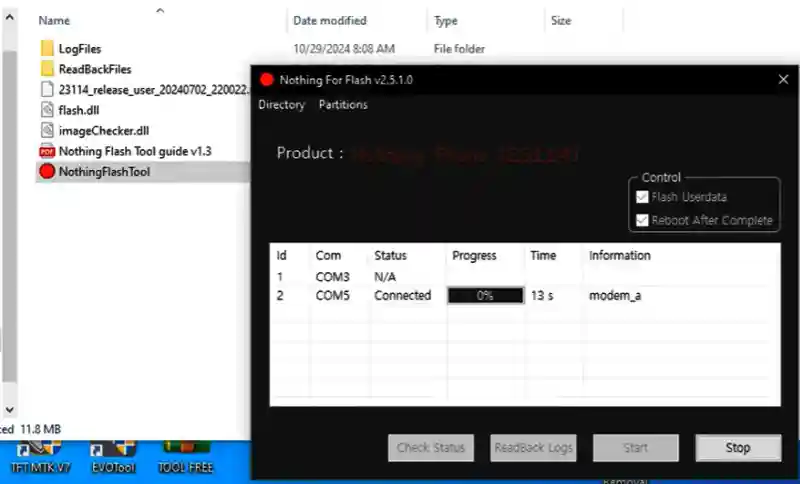
How to Flash the Nothing CMF Phone 1 Firmware With Nothing Flash Tool
The method is straightforward, just don’t unplug the cable in between:
- Download the file and extract it, inside you’ll find the firmware files and Nothing Flash Tool.
- Install the MTK USB drivers (if you haven’t already).
- Open Nothing Flash Tool (right-click it and select “Run as administrator”).
- In the tool, tick “Flash Userdata” and “Reboot After Complete”, FRP won’t clear without the userdata format.
- Press Start, then turn off the phone, hold down both Volume Up + Volume Down, and plug in the USB cable, the tool will catch the phone in Preloader mode and show “connected.”
- Flashing will begin, flashing a 5.36 GB file can take 10 to 15 minutes. Don’t unplug the cable or shut down the PC in between.
- Once the tool shows the completion message, the phone will reboot on its own, the first boot takes a bit longer, don’t panic.
If the phone does manage to get into fastboot mode (in a softbrick situation), there’s a fastboot ROM method too, but for this particular file, the Nothing Flash Tool method is the one that’s been written up, since this file is built to cover cases all the way up to hardbrick.
After Flashing – FRP Check
After flashing, the phone will boot into Nothing OS 4.0. During setup, before connecting to Wi-Fi, check whether the Google verification screen shows up, if setup finishes straight through, FRP’s cleared. If the verification screen does appear, don’t worry, over on the FRP Bypass hub, the Settings App one-tap link, or QuickShortcutMaker, gives you a way forward, which is explained in the section below.
CMF Phone 1 FRP Reset Without a PC
The file method itself can’t be done without a PC, you need both a PC and Nothing Flash Tool to flash the firmware. But there are some FRP bypass methods that don’t need a PC at all, and these come in handy for people who don’t have a PC, or for whom the verification screen still shows up even after flashing:
- On the FRP Bypass hub, there are one-tap links, Settings App or Chrome Browser can be opened directly on the phone.
- FRP Bypass APK and QuickShortcutMaker can get you through to Settings.
- Activity Launcher and Alliance Shield are also handy tools during the FRP setup screen.
These methods depend on the Android version and patch, not every no-PC method works on Nothing OS 4.0 (Android 16). If the no-PC method doesn’t work out, flashing the file is the solid fallback.
Download CMF Phone 1 Unbrick Firmware & FRP Reset File
Download the file from the link below. The file’s size is 5.36 GB, Nothing OS 4.0, Android 16, model A015.
Important Notes
- Only use this file on your own phone, or on a customer’s phone with their permission.
- Flashing will wipe the phone’s data.
- Only use it on the CMF Phone 1 (A015), don’t flash this file on a Nothing Phone 1, Phone 2, or CMF Phone 2 Pro.
- Don’t unplug the USB cable or shut down the PC during flashing, an interruption in the middle can brick the phone all over again.
- More information about the phone is available on the Nothing official website.
Conclusion
The Nothing CMF Phone 1 FRP Reset File (A015) is a full 5.36 GB stock firmware package that brings a bricked or bootlooping phone back to life on Nothing OS 4.0 (Android 16), and clears the FRP lock during the full flash process. The file gets flashed through Nothing Flash Tool in Preloader mode, and it only works on the A015. If the verification screen shows up after flashing, the one-tap methods on the FRP Bypass hub will help, and it’s worth checking out a similar file post too, SM-T295 U4 FRP Lock Remove File.
What Is the CMF Phone 1 FRP Reset File?
Can the FRP Lock Be Removed?
Will Flashing This File Unbrick a Dead CMF Phone 1?
How Long Does the Flash Take?
Does This File Work on Other Nothing Phones?
What Should I Do if the Tool Does Not Detect My Phone?
How to Factory Reset Nothing CMF Phone 1?
Is Removing FRP Illegal?
What Is Factory Reset Protection (FRP)?
Can I Reset CMF Phone 1 FRP Without a PC?
Can I Reset CMF Phone 1 FRP Without a Password?
Is There a Samsung-Style FRP File for CMF Phone 1?
Troubleshooting
Phone not getting detected in the tool:
Reinstall the MTK USB drivers, try a different cable, try another USB port on the PC, and hold both Volume Up + Volume Down while plugging in the cable, the CMF Phone 1 usually gets caught in Preloader mode this way.
Flash stops midway
Unplug the cable and start the flash again from scratch, a half-finished flash can leave the phone looking bricked, but flashing again in Preloader mode fixes it.
FRP lock still there after flashing
Check whether “Flash Userdata” was ticked, without it, FRP won’t clear. Do the full flash again, or check the “Without a PC” section above.
Phone stuck on the logo (bootloop)
Go back into Preloader mode and flash the file again, this happens when the first flash didn’t finish properly.
Tool not showing “connected
Try with the phone completely powered off, if the battery isn’t removable, hold the Power button for 10-15 seconds, then plug in the cable while holding Volume Up + Volume Down.
About This Site Unofficial guide site
I’m Jon Carter, a mobile software repair and FRP bypass specialist based in the United States of America. With over 5 years of experience, I share practical guides on FRP bypass, Google account lock issues, Android troubleshooting, and mobile software repair. Through Bypass-FRP.com, my goal is to help users understand common device problems and find reliable information for legitimate device recovery.